


반응형

Check how many CPUs are there in Linux system

last updated October 15, 2018 in CategoriesCentOS, Debian / Ubuntu, Hardware, Linux, RedHat and Friends, Suse

How do you check how many CPUs are there in Linux system using the command line option?


Introduction: One can obtain the number of CPUs or cores in Linux from the command line. The /proc/cpuinfo file stores CPU and system architecture dependent items, for each supported architecture. You can view /proc/cpuinfo with the help of cat command or grep command/egrep command. This page shows how to use /proc/cpuinfo file and lscpu command to display number of processors on Linux.

How do you check how many CPUs are there in Linux system?

You can use one of the following command to find the number of physical CPU cores including all cores on Linux:

  1. lscpu command

  2. cat /proc/cpuinfo

  3. top or htop command

  4. nproc command

  5. hwinfo command

  6. dmidecode -t processor command

  7. getconf _NPROCESSORS_ONLN command

Let us see all commands and examples in details.

How to display information about the CPU on Linux

Just run the lscpu command:

$ lscpu

$ lscpu | egrep 'Model name|Socket|Thread|NUMA|CPU\(s\)'

$ lscpu -p
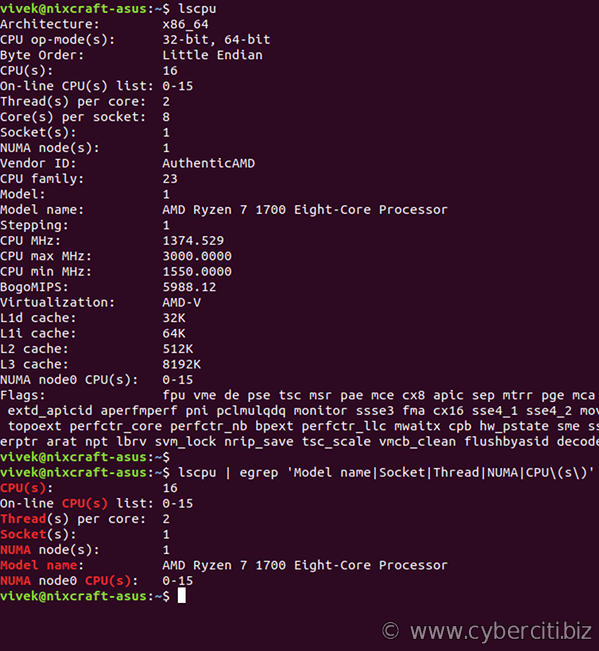
 

The output clearly indicate that I have:

  1. CPU model/make: AMD Ryzen 7 1700 Eight-Core Processor

  2. Socket: Single (1)

  3. CPU Core: 8

  4. Thread per core: 2

  5. Total threads: 16 ( CPU core[8] * Thread per core [2])

Use /proc/cpuinfo to find out how many CPUs are there in Linux

The lscpu command gathers CPU architecture information from sysfs, /proc/cpuinfo and other sources. To view use the cat command and more command as follows:

$ cat /proc/cpuinfo


OR

$ more /proc/cpuinfo


Let us print cpu thread count:

$ echo "CPU threads: $(grep -c processor /proc/cpuinfo)"

$ grep 'cpu cores' /proc/cpuinfo | uniq

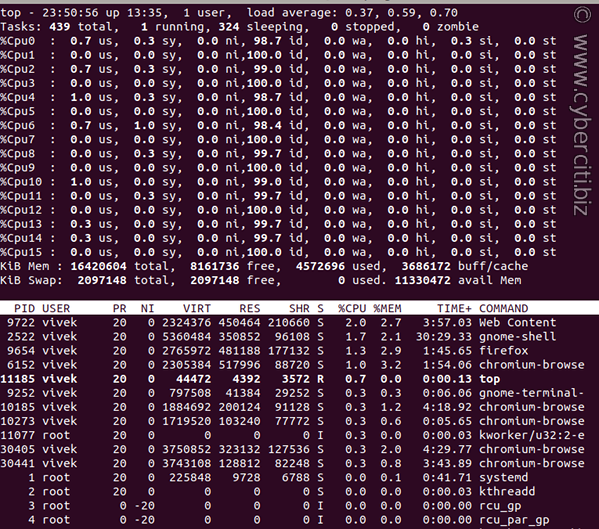
Run top or htop command to obtain the number of CPUs/cores in Linux

Simply run the following command and hit ‘1’:

$ top


반응형
블로그 이미지

조이풀 라이프

Lift is short, enjoy the life

,
반응형

[종합소득세 과세표준과 세율]

과세표준

소득세율

누진 공제액

계산법

1,200만원 이하

6%

0원

과세표준 금액 X 6%

1,200만원 초과~4,600만원 이하

15%

108만원

과세표준 금액 X 15% - 108만원

4,600만원 초과~8,800만원 이하

24%

522만원

과세표준 금액 X 24% - 522만원

8,800만원 초과~1억5,000만원 이하

35%

1,490만원

과세표준 금액 X 35% - 1,490만원

1억5,000만원 초과~3억원 이하

38%

1,940만원

과세표준 금액 X 38% - 1,940만원

3억원 초과~5억원 이하

40%

2,540만원

과세표준 금액 X 40% - 2,540만원

5억원 초과

42%

3,540만원

과세표준 금액 X 42% - 3,540만원

반응형
블로그 이미지

조이풀 라이프

Lift is short, enjoy the life

,
반응형

CentOS 7에 Tomcat8을 설치 및 설정하는 예제를 진행하겠습니다. 테스트의 편의성을 위해 root 계정에서 진행하겠습니다.


1. open-jdk 1.8 설치 


jdk를 설치하기 바랍니다.

설치 방법은 아래 링크를 참조하기 바랍니다.

yfkwon.tistory.com/47?category=664685


2. tomcat 설치


tomcat은 설치하는 방법이 다양합니다. 이번 예제는 wget을 이용해 설치하겠습니다.


# wget http://archive.apache.org/dist/tomcat/tomcat-8/v8.5.27/bin/apache-tomcat-8.5.27.tar.gz


// 압축 해체

# tar zxvf apache-tomcat-8.5.27.tar.gz


// 톰캣을 /usr/local/로 이동시키고 디렉토리 이름을 tomcat8로 변경

# mv apache-tomcat-8.5.27 /usr/local/tomcat8


3. tomcat 설정 및 환경 변수 등록


vi /usr/local/tomcat8/conf/server.xml

// vi /usr/local/tomcat8/conf/server.xml// 아래 설정을 찾아서 URIEncoding="UTF-8"을 추가한다.


...

<Connector port="8080" protocol="HTTP/1.1"

connectionTimeout="20000"

redirectPort="8443"

URIEncoding="UTF-8" />

...

vi /etc/profile

...


JAVA_HOME=/usr/lib/jvm/java-1.8.0-openjdk-1.8.0.242.b08-0.el7_7.x86_64

CATALINA_HOME=/usr/local/tomcat8

CLASSPATH=$JAVA_HOME/jre/lib:$JAVA_HOME/lib/tools.jar:$CATALINA_HOME/lib-jsp-api.jar:$CATALINA_HOME/lib/servlet-api.jar

PATH=$PATH:$JAVA_HOME/bin:/bin:/sbin

export JAVA_HOME PATH CLASSPATH CATALINA_HOME

설정 후 아래 명령어 입력 

# source /etc/profile


3. tomcat 실행


startup.sh파일은 tomcat을 실행시키는 shell script입니다. 해당 파일을 실행시켜 tomcat을 작동시켜줍니다.


# /usr/local/tomcat8/bin/startup.sh

tomcat이 실행되고 있는지 확인합니다.


//톰캣 프로세스 확인

# ps -ef|grep tomcat8


// 8080 포트가 열려있는지 확인

# netstat -tln

 테스트해보기 위해 다음 명령어를 실행시켜줍니다.


# wget http://localhost:8080/


index.html 파일이 다운로드 되었다면 정상적으로 tomcat이 실행되고 있다는 의미입니다. 


index.html 파일은 기본적으로 실행되는 /usr/local/tomcat8/webapps/ROOT WebService에서 다운받은 것이며, 


http://localhost:8080 호출 시,  /usr/local/tomcat8/webapps/ROOT/index.jsp 파일이 index.html로 변환되어 다운됩니다.


4. systemctl 등록


vi /etc/systemd/system/tomcat8.service

# Systemd unit file for tomcat

[Unit]

Description=Apache Tomcat Web Application Container

After=syslog.target network.target


[Service]

Type=forking


Environment="JAVA_HOME=/usr/lib/jvm/java-1.8.0-openjdk-1.8.0.242.b08-0.el7_7.x86_64/"

Environment="CATALINA_HOME=/usr/local/tomcat8"

Environment="CATALINA_BASE=/usr/local/tomcat8"

Environment="CATALINA_OPTS=-Xms512M -Xmx1024M -server -XX:+UseParallelGC"

Environment="JAVA_OPTS=-Djava.security.egd=file:///dev/urandom"


ExecStart=/usr/local/tomcat8/bin/startup.sh

ExecStop=/usr/local/tomcat8/bin/shutdown.sh


User=root

Group=root

UMask=0007

RestartSec=10

Restart=always


[Install]

WantedBy=multi-user.target


# systemctl daemon-reload

# systemctl enable tomcat8


// tomcat8 실행

# systemctl start tomcat8


5. systemctl service 부팅 시 자동 실행


//부팅 시 자동 실행 서비스 등록

# systemctl enable tomcat8.service

//등록된 서비스 조회

# systemctl list-unit-files --type service |grep tomcat8


6. tomcat manager 설정 (해당 설정은 선택사항 입니다.)


tomcat manager란 tomcat 모니터링 및 어플리케이션 관리, WAR 배포 및 다양한 서비스를 제공해주는 관리 페이지입니다.


1) tomcat-users.xml 수정


vi /usr/local/tomcat8/conf/tomcat-users.xml

<tomcat-users xmlns="http://tomcat.apache.org/xml" xmlns:xsi="http://www.w3.org/2001/XMLSchema-instance" xsi:schemaLocation="http://tomcat.apache.org/xml tomcat-users.xsd" version="1.0">


  <role rolename="manager"/>

  <role rolename="manager-gui" />

  <role rolename="manager-script" />

  <role rolename="manager-jmx" />

  <role rolename="manager-status" />

  <role rolename="admin"/>

  <user username="admin" password="패스워드" roles="admin,manager,manager-gui, manager-script, manager-jmx,  manager-status"/>


</tomcat-users>


2) 외부 접근 허용 설정


vi /usr/local/tomcat8/conf/Catalina/localhost/manager.xml

<Context privileged="true" antiResourceLocking="false" docBase="${catalina.home}/webapps/manager">          <Valve className="org.apache.catalina.valves.RemoteAddrValve" allow="^.*$" />

</Context>

설정 후, 서버 재시작


3) 테스트


http://자신의IP:8080/manager

위 주소를 입력하고 ID와 password를 입력면 아래와 같은 웹페이지가 노출됩니다.  

반응형
블로그 이미지

조이풀 라이프

Lift is short, enjoy the life

,